|
Why use the Check Out/In feature?
Lima supports a number of methods (Read Only, Edit, and Check Out) when opening files.
The "Check Out" feature is the most effective way for a user to make multiple changes to a file over a prolonged period of time.
Unlike the edit feature a copy of the document is placed locally on the user's machine. This means that when a user has finished modifying a file those changes reside on the local machine and not in Lima until the "Check In" option is used.
NB - Lima cannot be closed without asking you if you wish to check any "Checked Out" files back in.
To check out a file right click on the file name and select "Check Out (Enable Edit)".
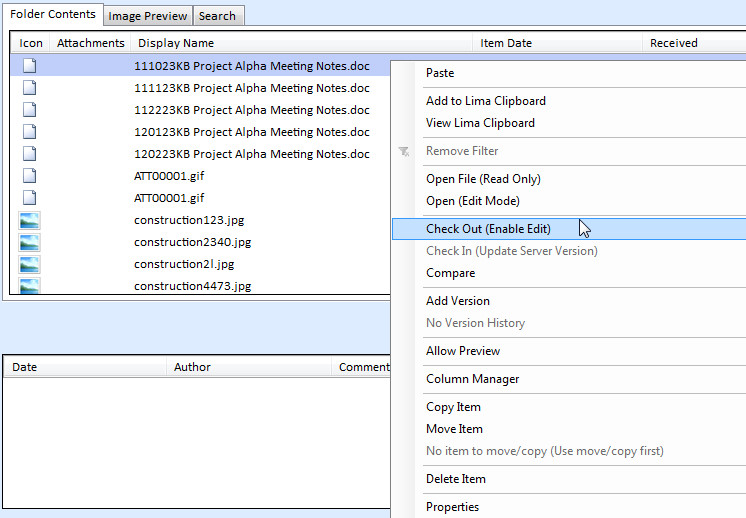
Similar to to downloading a file from the Internet, Lima will ask you to save a copy of the file on your local machine.
NB - Do not change the file name to ensure the process remains as straightforward as possible.
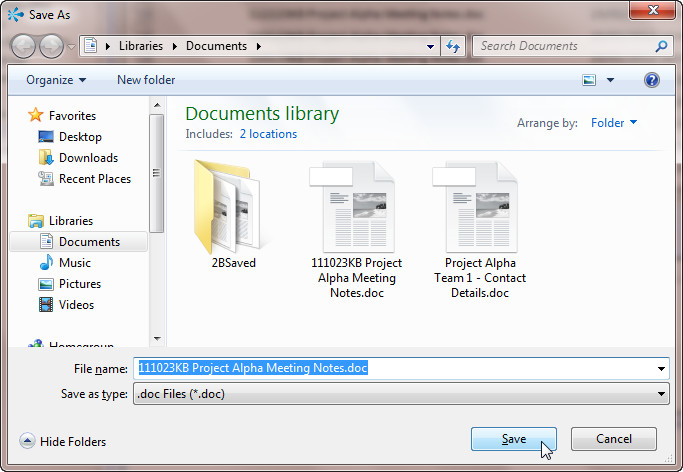
Click "Save" and the document will open automatically in the correct software.
During this time the file is "Checked Out" and cannot be used by another Lima user. The checked out file is indicated by a blue tick -

When you have finished modifying the file you are required to check the file back in.
To check the file in, save the file as your would normally (for example File > Save in MS Word) and close the application.
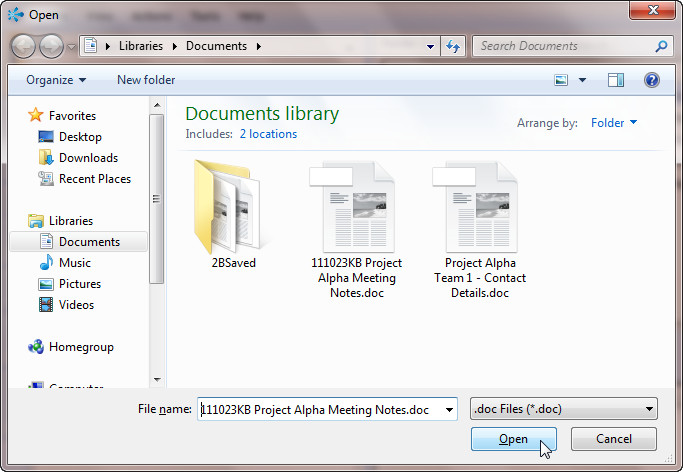
In Lima, right click on the file that is checked out and select "Check In (Update Server Version)"

A new dialogue box will open. If the file name was not changed during the modifications, simply click "Open" to update the server version. If the name was changed during the time the file was checked out the user will have to select the modified file manually.
--End--
Related topics:
- Read Only Files
- Edit a file

|