|
Why open a file as read only?
Lima supports a number of methods (Read Only, Edit, and Check Out) when opening files.
The Read Only feature is used when a user wishes to read a file but does not wish to make changes to its contents.
For example, if a set of minutes has been approved and distributed via Lima (as shown in the example shown below) it is likely that the majority of users will not need to make changes to this type of document.
Additionally, although Lima provides document version control, opening a file as read only prevents accidental changes to a file's contents.
Therefore, to open a file as read only - right click on the selected file and select "Open File(Read Only)" from the menu.
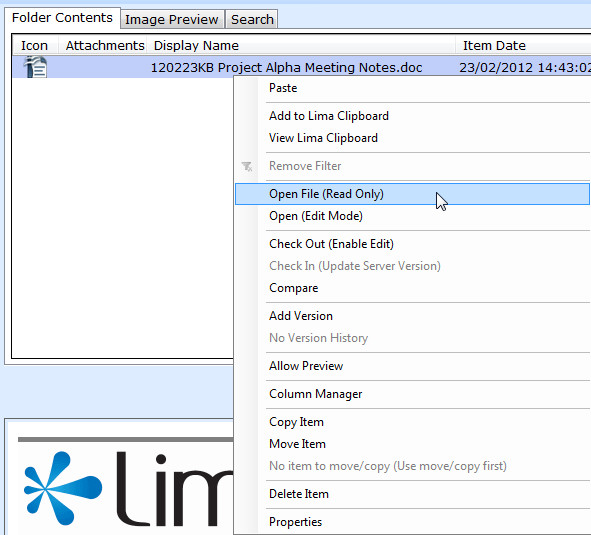
Lima then uses your file associations* to open the relevant piece of local software and display the file.
*File Associations - each file name is made up of two parts, the name and the extension (name.extension). The extension is what determines the file type. In the example above, the file's name is "120223KB Project Alpha Meeting Notes" and the extension is ".doc".
.doc is a very common file extension and is used when a user creates a file in Microsoft Word.
--End--
Related topics:
- Edit a file
- Check Out a file

|