|
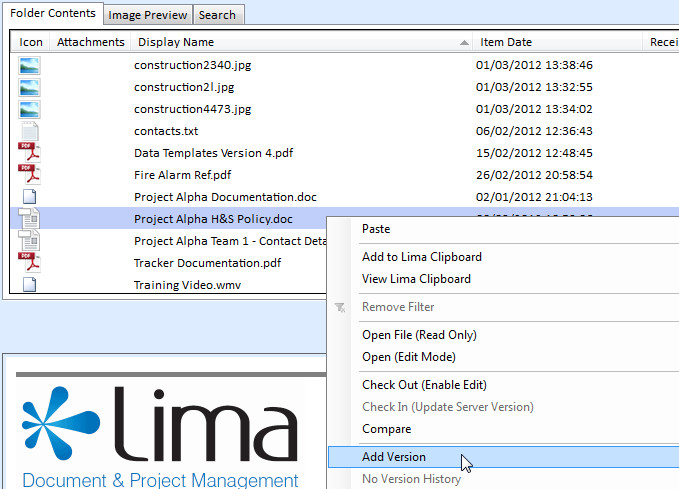
Select the file you wish to add a new version to. Right click and select "Add Version".
The "Add Version" window opens -
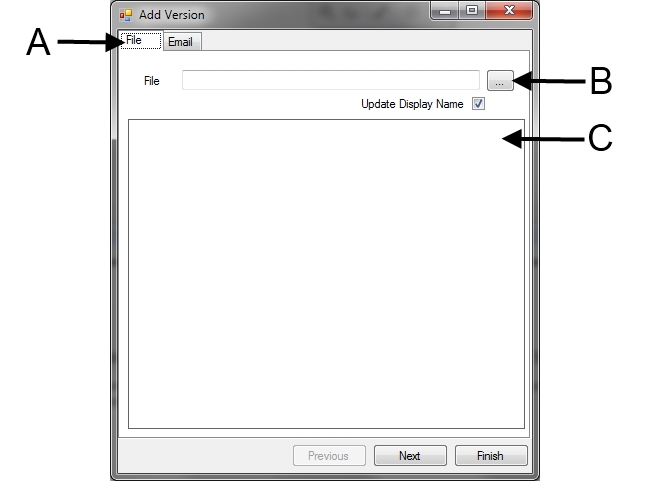
A - Add Version / Email Tab - The Add Version Tab allows you to upload another version of a file to Lima. Additionally, users can choose to add a comment detailing the new version. The Email tab uses the MS Outlook address book to enable you to inform other Lima users about the new version.
B - Browse - Use this to find the new version of a file on your local machine / network drive.
C - Text Editor - The text editor allows you to add a comment relating to the new version.
Click the Browse button and select the file on your local machine.
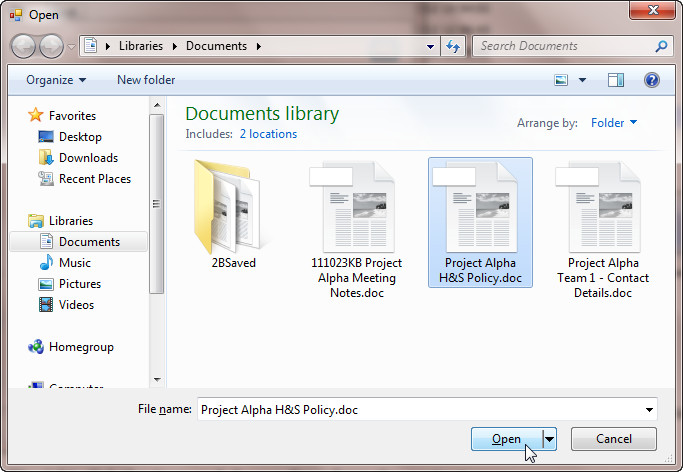
Once selected it is recommended that all users add a comment detailing the addition of a new file version.
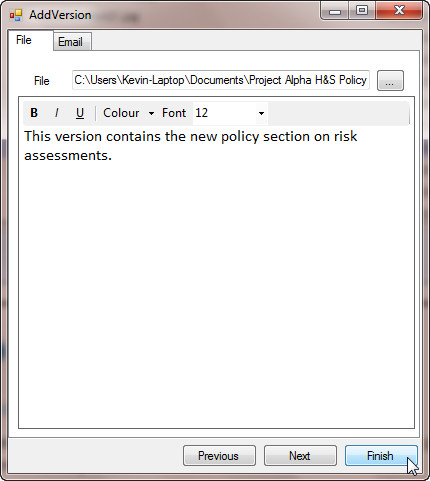
Click "Finish". Lima will ask you to confirm the action. Click "Yes".
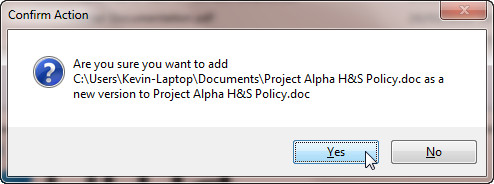
Once confirmed there is a slight delay while the Lima server updates.
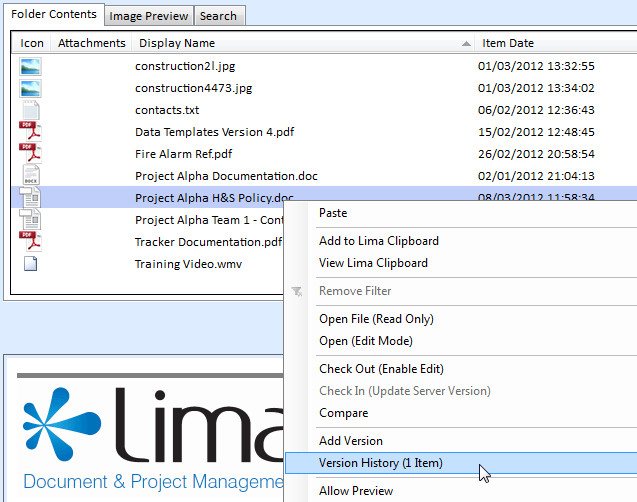
To view the previous version of a document. Right click on the file name and click "Version History". In the example shown below, the file has one previous version indicated by the "(1 item)".
NB - If a file does not have any previous versions this option is greyed out and cannot be selected from the right click menu.
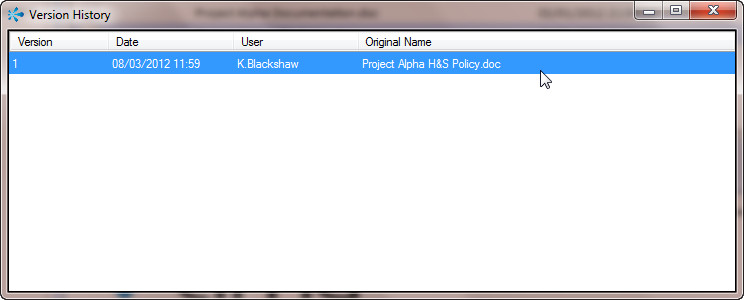
A new window opens and displays the previous versions of the file. If you wish to review an earlier version double click the file name.
The comment associated with the latest version is displayed in the file's properties. This can be accessed by right clicking on a file name and selecting properties.
--End--
Related topics:
- Adding file comments

|