Working with the Lima Clipboard

|
Working with the Lima Clipboard |
|

This section explains the Lima Clipboard. The clipboard can be seen in use in both the Request a file review and the Send files via email help files. |
Level = Basic |
Time required = 10 Minutes |
|
Why use the Lima Clipboard?
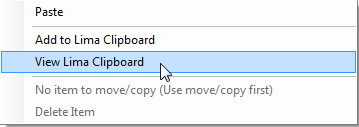
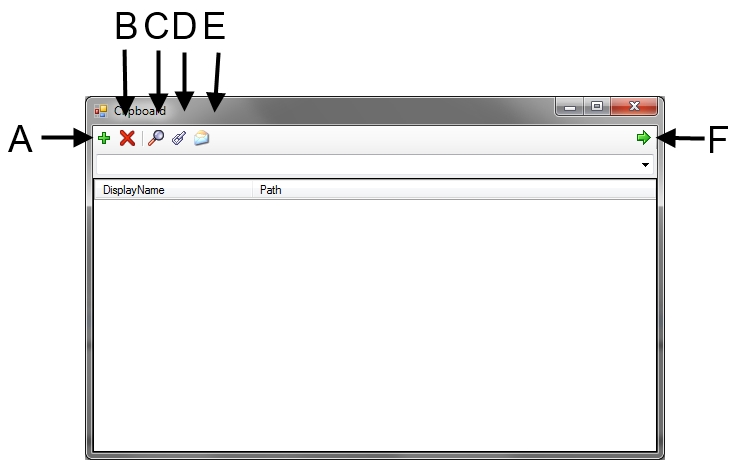
A - Add a new clipboard. Allows the user to configure multiple clipboards. B - Delete a clipboard. Allows a user to delete a user configured clipboard. The default clipboard cannot be deleted. C - View item. Opens the folder in which the selected file is stored. D - Send select items as email links. Allows the user to automatically create links to the files in the clipboard and email those links to other Lima users. This feature is explained fully in its own help file - Request a file review via Email Link. E - Send selected items to email. Allows user to send the selected items to an email as an attachment. This feature is explained fully in its own help file - Sending files via email. F - Dock clipboard to the right. Move the clipboard to the right-hand side of the screen. Add a file to the Lima Clipboard Right click on the file and select "Add to Lima Clipboard". 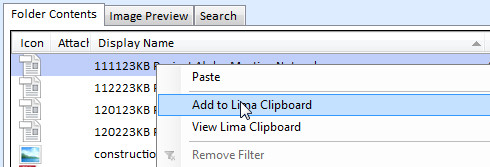
--End-- Related topics: Request a file review via Email Link Sending files via email 
|