This section explains how the Email Link feature is used to request a file review by sending a link to a file to another Lima user. Using this tool sends a link to a specific file and not the file itself. As such you can only used this feature with other Lima users.
If you wish to send the file as an email attachment, please click here.
NB - Lima is designed to work in conjunction with MS Outlook and as such, the "Working with Email" section of the LHC requires you to have access to Microsoft Outlook.
Level = Basic
Time required = 10 Minutes
Requesting a review of a single file
Select the file and click the "Email Link" button (located on the quick links menu bar to the right of the Lima interface
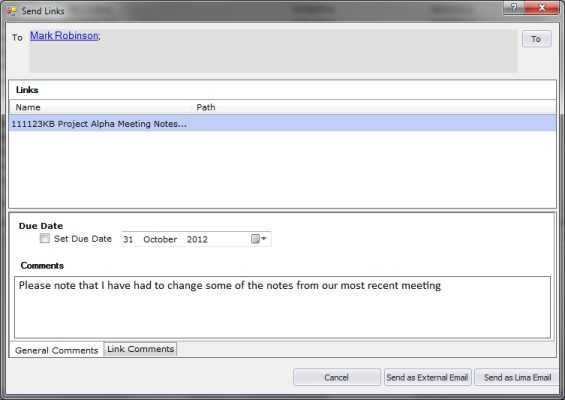
The "Send Link" tab of the file's properties is opened.
Use the "To" button to browse the Lima address book and select recipients, then type a message in the text editor below. In the example a link to a set of minutes is being sent to Mark Robinson.
Click Send. Lima will confirm that the email has been sent.
Sending Links to multiple files via Email Link
Right click on each file (required to be reviewed) and select "Add to Lima Clipboard".
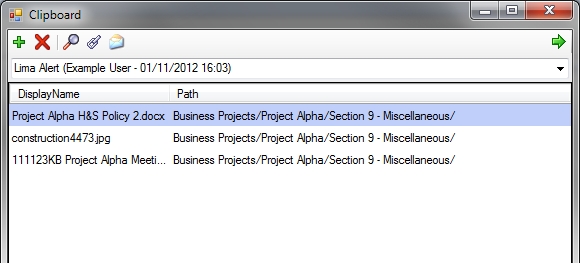
The Lima Clipboard will appear automatically. However, you can always view the clipboard by right clicking anywhere in the Folder Contents window and selecting "View Lima Clipboard".
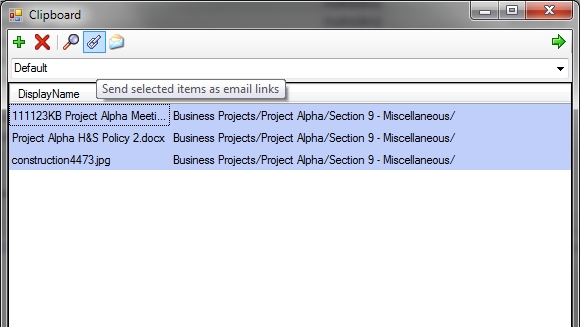
In the clipboard window use the "Ctrl key" to select multiple files. When selected the file name highlights in Blue.
Click the "Email Link" button at the top of the clipboard.
The Send Links window opens. Use the "To" button to select one or more recipients and type your message in the text editor.
In the example above, the email is being sent to "Mark Robinson and the Administrator" and they are being asked to review three files.
Click Ok.
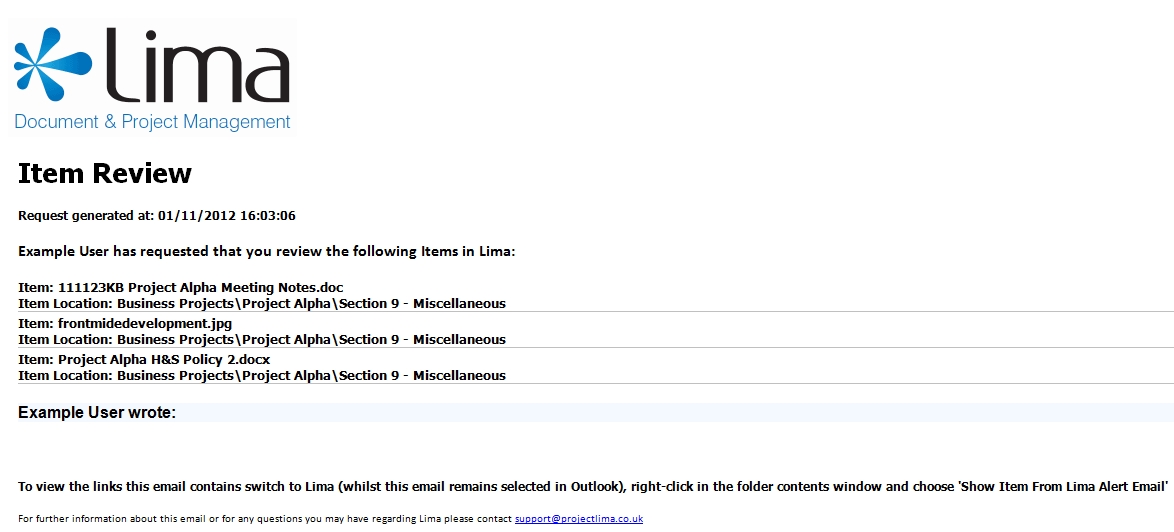
The recipients of the email will recieve an email similar to the one shown below -
The email provides a recipient a brief set of instructions of how to access the linked files. These instructions are summarised below.
Receiving a File Review Request
To view the files that require a review ensure that the Lima document review email is selected in Outlook.
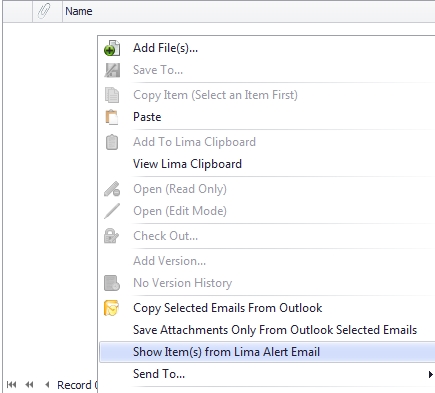
In the Lima interface right click in any folder contents window and select "Show Item(s) from Lima Alert Email".
The Lima clipboard will then open on the recipients workstation display links to the files which requirte a review.