The Lima clipboard is used to temporarily group files together that are stored in different folders. users may wish to group files for the following reasons:
To move more quickly between files they need regularly.
To enable the sending of links (via email) to other Lima users
To enable the sending of files as email attachments
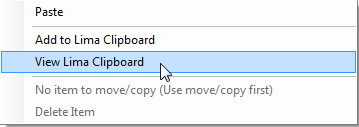
The Lima clipboard can be access from the right click menu anywhere in the Folder Contents window.
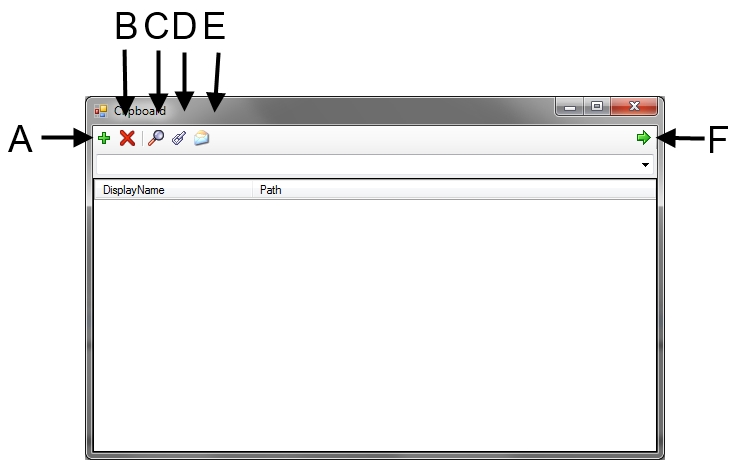
A - Add a new clipboard. Allows the user to configure multiple clipboards.
B - Delete a clipboard. Allows a user to delete a user configured clipboard. The default clipboard cannot be deleted.
C - View item. Opens the folder in which the selected file is stored.
D - Send select items as email links. Allows the user to automatically create links to the files in the clipboard and email those links to other Lima users. This feature is explained fully in its own help file - Request a file review via Email Link.
E - Send selected items to email. Allows user to send the selected items to an email as an attachment. This feature is explained fully in its own help file - Sending files via email.
F - Dock clipboard to the right. Move the clipboard to the right-hand side of the screen.
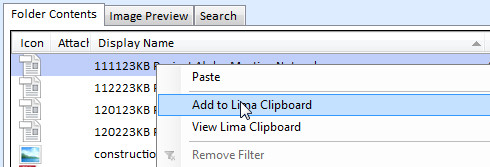
Add a file to the Lima Clipboard
Right click on the file and select "Add to Lima Clipboard".