|
Lima displays all files in the folders contents window as shown in the example below (click on the example to see larger image if required):
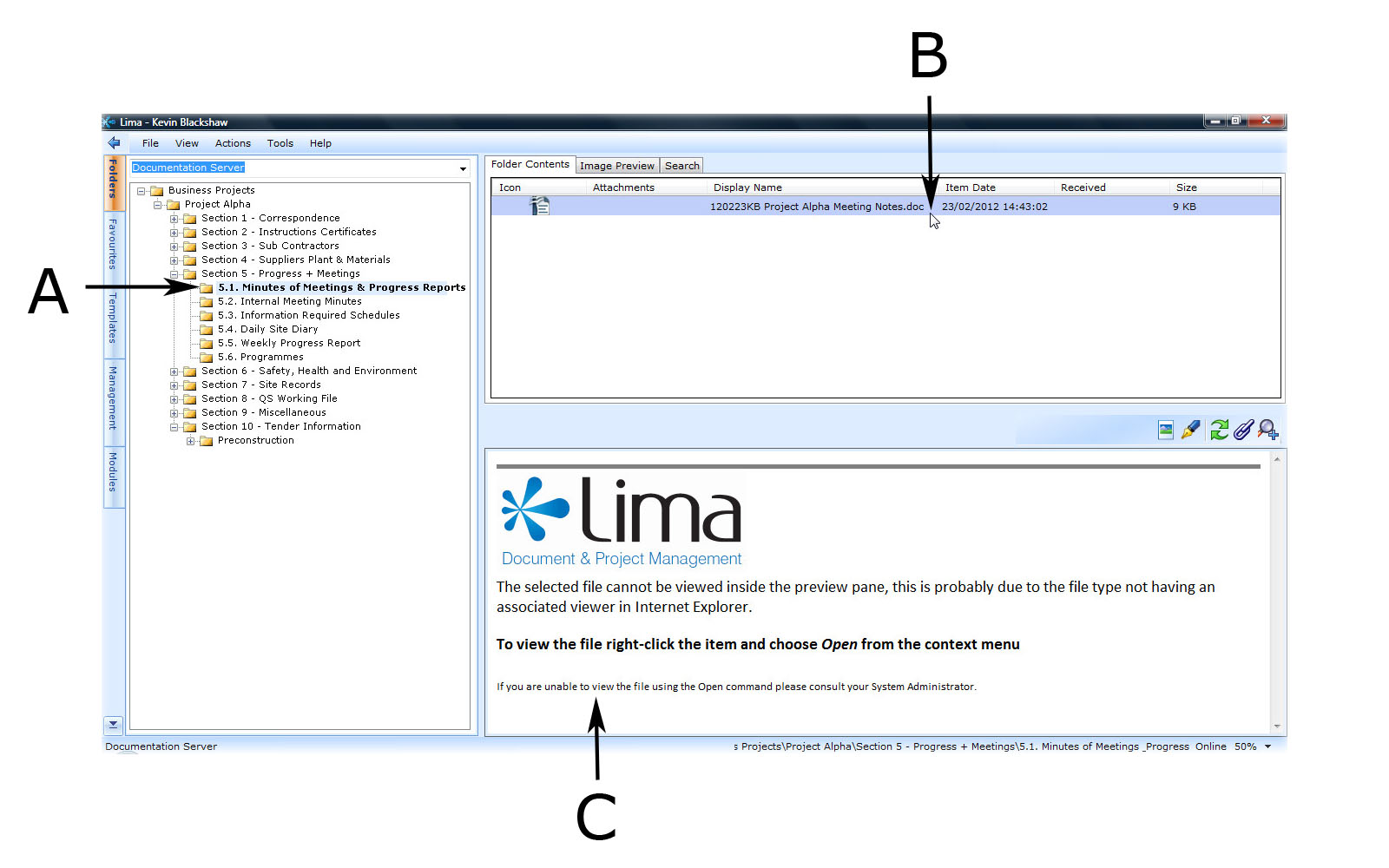
In Project Lima folders and files are listed separately to aid clarity. Folders are always displayed in the Project Window (A) whereas files are displayed in the Folder Contents (B) window.
In the example, the folder (A) "5.1. Minutes of Meetings & Progress Reports" is open and contains one file (B) "120223KB Project Alpha Meeting Notes.doc". We can determine both from the file icon and the extension - .doc that this file is a Word document associated with Microsoft Word.
Note however, the file preview window (C) is disabled for Microsoft files. This is by design as document preview is a Microsoft Windows / Microsoft Office limitation and not a limitation of Lima.
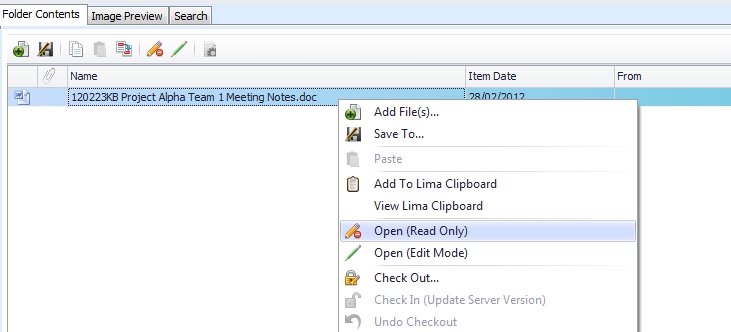
Should the preview be disabled (as it is in the example) the quickest way to view a file's contents is to right click on the file and select Open (read only) from the menu as shown below:
--End--
Related topics:
- Adding a file to Lima
- Checking a file Out of Lima
- The Lima Interface

|