|
When logging into Lima for the first time you are assigned a password. This password is a random group of letters and numbers that may prove difficult to remember.
Therefore, it is strongly recommended that all users change their password to something easier to remember. Furthermore, to ensure your password is strong try a longer word (eight characters or more) which contains a combination of letters and numbers. Here are some examples of stronger passwords -
Chr15tma5 - Here we have the word Christmas, where the "i" has been replaced with a "1" and the "s" have been replaced with the number 5.
5ummert1me - Here the "S" and the "i" in the word Summertime have been replaced with a "5" and a "1"
Ensure you are logged in to Lima
Select the "user profile" option from the view menu.
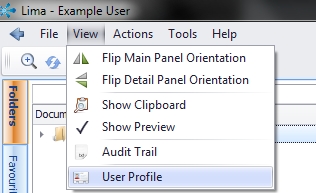
Select "Login"
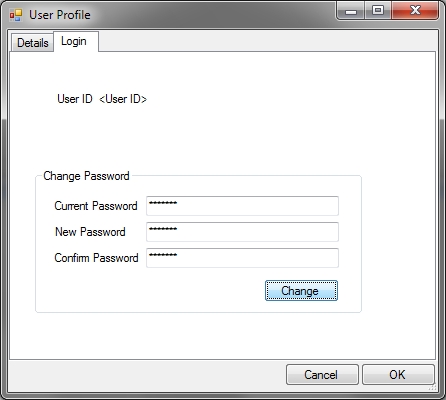
Enter your old password and then your new password as instructed. Click change password.
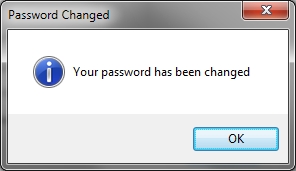
Lima confirms that you have changed your password successfully. Click OK.
Important - To close Lima please choose the "Log Out and Exit" option from the file menu. This will ensure that next time you log in that you are prompted for your new password.
--End--
Related topics:
- Logging out of Lima
- I have forgotten my password

|