|
Through the use of the column manager, Lima allows users to change the way information is displayed pertaining to a group of files within a folder. Shown below is the default column layout for the folder contents window. The column titles are indicated by the blue arrow -

The default column headings are -
Icon - A small pictorial representation of type of file. Lima uses the same icon formats as all Microsoft platforms.
Attachments - this field is used by emails only. i.e. if an email is placed in Lima which contains an attachment, the attachment will be included in the system. This is explained more in the "working with emails" section.
Display Name - This is the title by which the file is known in Lima. It is important to remember that files can be given different names in Lima that differ from their original title, as discussed in the "How to remane a file" section.
Item Date - The last time the file was modified.
Size - This size of the file.
Checkout Column - although not named, the checkout column informs users when a file is in use. A checked out file is indicated by a blue tick. As shown here.
To access the Column Manager right click anywhere in the folder contents window and select Column Manager -

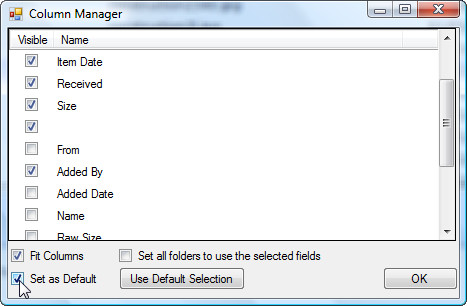
The Column Manager opens -
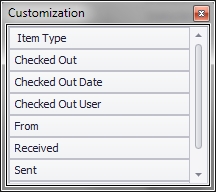
Once open use the scroll bar to view the different attributes available.
To add an attribute, such as "added by" place a tick in the corresponding box. If you wish to add this column permanently to the corresponding folder. check the box "Set as default".
A further option, "Set all folders to use the selected fields" allows users to replicate their customised column choices to every folder.
This is how a complex folder, containing multiple files looks with the addition of the added by column -

If you need to change the width of the columns to display information more clearly. Move the mouse to to the faint grey line between the column titles. Once there the pointer will change to a double headed white arrow. Hold the left mouse button down and drag the column as required.

--End--
Related topics:
- Logging in to Lima
- Add an email
- How to remane a file
- The Lima interface

|